

Organization Settings
Admin Settings › Organization holds your institution-wide configuration (Manager role and above). It’s one form — edit any of the cards and click Save Changes.
Organization Details
Section titled “Organization Details”- Logo — upload a JPG or PNG. The logo appears in the portal, on student upload and results pages, on result emails, and on the evaluation PDF. Remove Logo reverts to the default.
- Organization Name — your institution’s display name across the platform.
- Admin Email — the administrative contact for your tenant.
SMTP Settings
Section titled “SMTP Settings”By default, TCEvaluator sends results emails from the platform. To send from your institution’s own domain (better deliverability and a familiar sender for students), enter your mail server’s SMTP Host, SMTP Port, Username, and Password. Ask your IT team for these values — they’re the same ones used to configure any mail client.
AI Settings
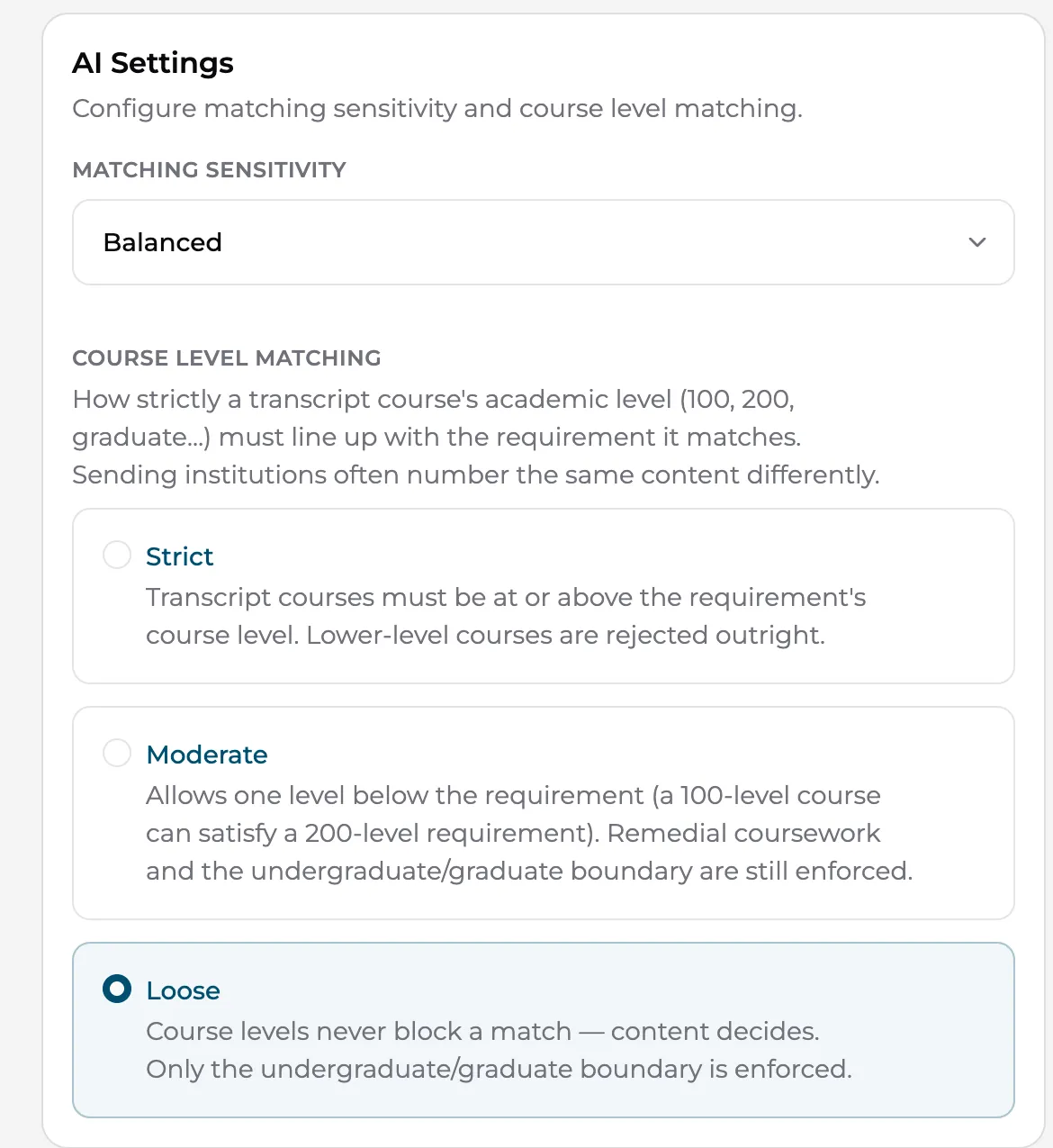
Section titled “AI Settings”These two controls tune the AI that suggests course matches. They apply institution-wide, to all programs.
Matching Sensitivity
Section titled “Matching Sensitivity”How confident the AI must be before suggesting a match:
- Low — more suggestions with a lower confidence bar. Good when your evaluators prefer to see every possibility and prune manually.
- Balanced — the recommended default.
- High — fewer, higher-confidence suggestions. Good when review time is scarce and false positives are costly.
Course Level Matching
Section titled “Course Level Matching”Whether a transcript course’s level (100/200/300…) can block a match to a program course:
- Strict — a transcript course must be at or above the program course’s level; lower-level courses are rejected regardless of content.
- Moderate — allows one level below; remedial courses and the undergraduate/graduate boundary are still enforced.
- Loose — level never blocks a match, content decides; only the undergraduate/graduate boundary is enforced.
Brand Colors
Section titled “Brand Colors”Set your Primary and Secondary brand colors (color picker or hex). They style the student-facing results page and email along with your logo — preview a result after changing them. See also Results page & email for the content side.
PDF Disclaimer
Section titled “PDF Disclaimer”The PDF Disclaimer Text card sets the disclaimer printed on every evaluation PDF — typically language noting that the evaluation is subject to final review by the registrar. Keep it aligned with your institution’s official transfer credit policy wording.