

Adding & Editing Courses
Each program carries its own course list, managed on the program page’s Course Management tab. These are the courses the AI matches transcript coursework against — a complete, accurate list is the single biggest lever for good evaluations. You need the Manager role or higher.
Add a course
Section titled “Add a course”-
Go to Institution › Programs and open the program.
-
On the Course Management tab, click Add Course. (Courses are grouped by term — use Expand All to see everything at once.)
-
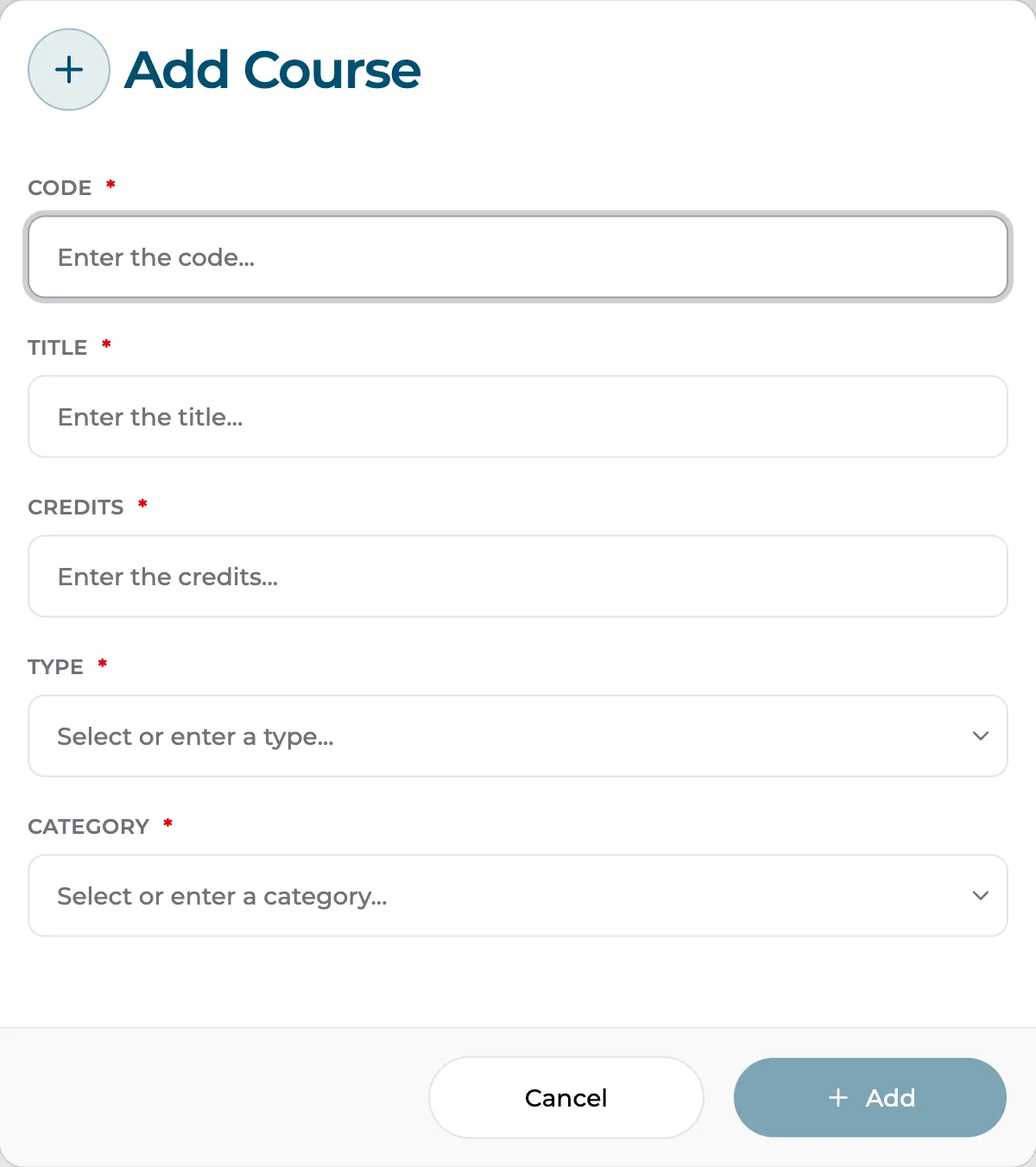
Fill in the course:
- Code — the course code as it appears in your catalog (for example
BIO201). Codes carry the course level, which the AI uses when Course Level Matching is set to Strict or Moderate. - Title — the full course title. The AI matches primarily on what a course is about, so use the real catalog title, not an abbreviation.
- Credits — the credit value applied when a match transfers.
- Type — the course’s role in the program (for example program-specific vs. general education). The transfer policy applies different grade minimums and time limits by type.
- Category — how the course is grouped in results and filters.
For Type and Category you can pick an existing value or type a new one.
- Code — the course code as it appears in your catalog (for example
-
Click Add. The course is immediately available for matching in new evaluations.
Edit or remove a course
Section titled “Edit or remove a course”Each course row has actions to edit its fields or delete it. Changes affect future evaluations — completed evaluations keep the results they were confirmed with.
Per-course transferability
Section titled “Per-course transferability”Every course row also has a transferability switch. Turn it off for courses that must always be completed at your institution (capstones, clinicals, residency requirements) — the course stays visible in the program but transfer credit can’t be applied to it.
Tips for a catalog that matches well
Section titled “Tips for a catalog that matches well”- Use official catalog titles. “Anatomy & Physiology I” matches better than “A&P 1”.
- Get the codes right. Level-aware matching reads the number in the code
— a
BIO450requirement won’t accept a 100-level course under Strict matching. - Set the right type. Grade and time-limit policies differ between program-specific and general education courses; a mis-typed course applies the wrong policy.
- Review after the first few evaluations. If a course never gets suggestions you’d expect, check its title for local jargon the AI can’t interpret.