

Results Page & Email
When a student uploads through a direct link or your website form, they receive a branded results page and results email with their estimated transfer credit. Admin Settings › Results Page controls what those say (Manager role and above). Edit the cards and click Save Changes.
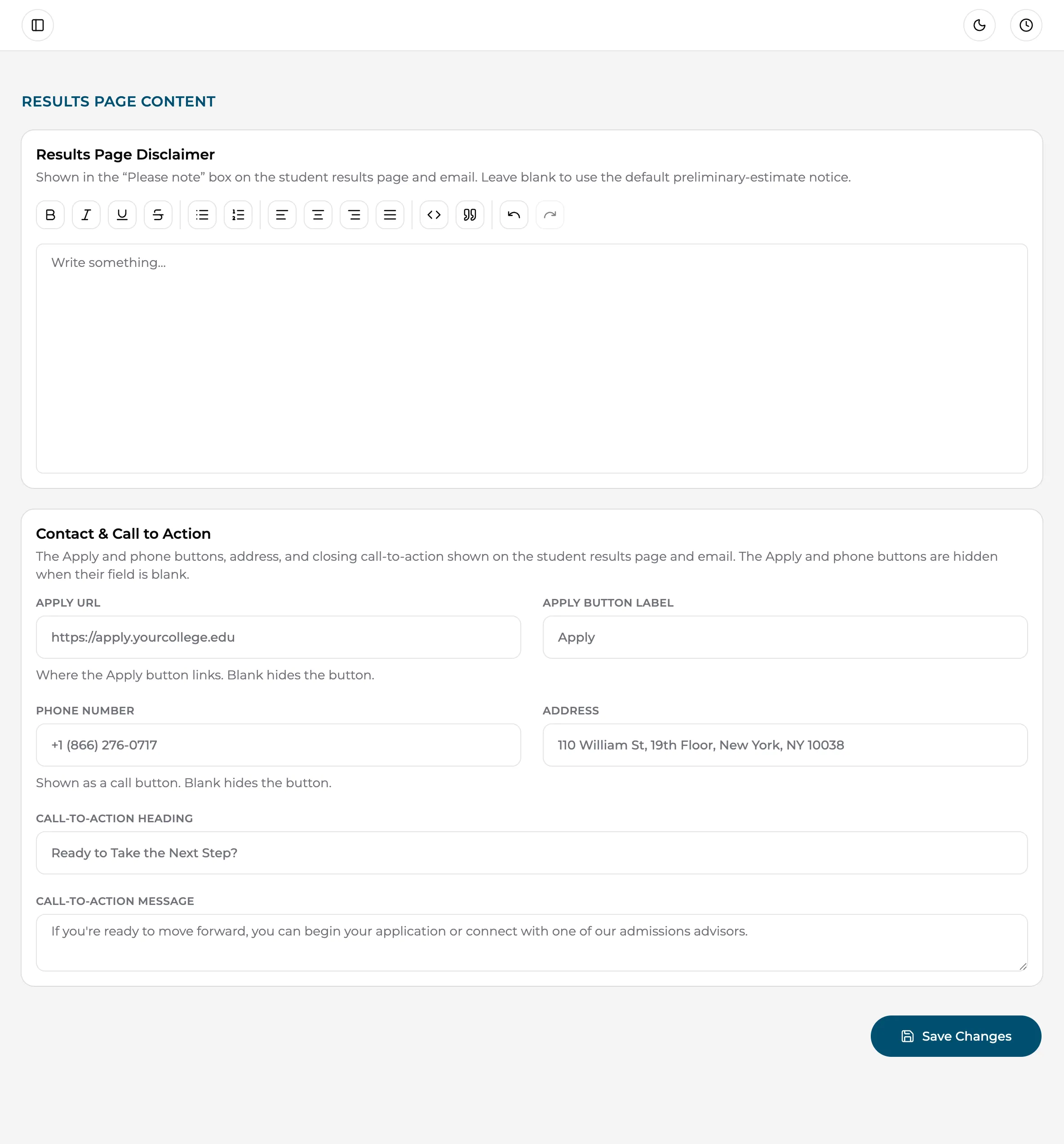
Results Page Disclaimer
Section titled “Results Page Disclaimer”A rich-text disclaimer shown in the “Please note” box on the student’s results page and email. Use it for your institution’s preferred language about the estimate’s status — for example, that results are preliminary and subject to official review upon enrollment.
Leave it blank to use the platform’s default preliminary-estimate notice.
Contact & Call to Action
Section titled “Contact & Call to Action”This card turns the results page from a report into a next step:
- Apply URL — where the Apply button sends the student. Leave blank to hide the button entirely.
- Apply Button Label — the button text (for example “Start Your Application”).
- Phone Number — shown with a call button; blank hides it.
- Address — your campus or admissions office address.
- Call-to-Action Heading and Call-to-Action Message — the headline and short pitch above the buttons (for example “Ready to Take the Next Step?” with a sentence inviting the student to talk to admissions).
How it all fits together
Section titled “How it all fits together”The student results experience combines three settings pages:
| What | Where it’s configured |
|---|---|
| Logo & brand colors | Organization settings |
| Disclaimer, contact info, Apply button, call to action | This page |
| Sender domain for the email | SMTP settings |