

Creating an Evaluation
You can start an evaluation from the Home page (the form is embedded there) or from the dedicated New Evaluation page. You need the Analyst role or higher.
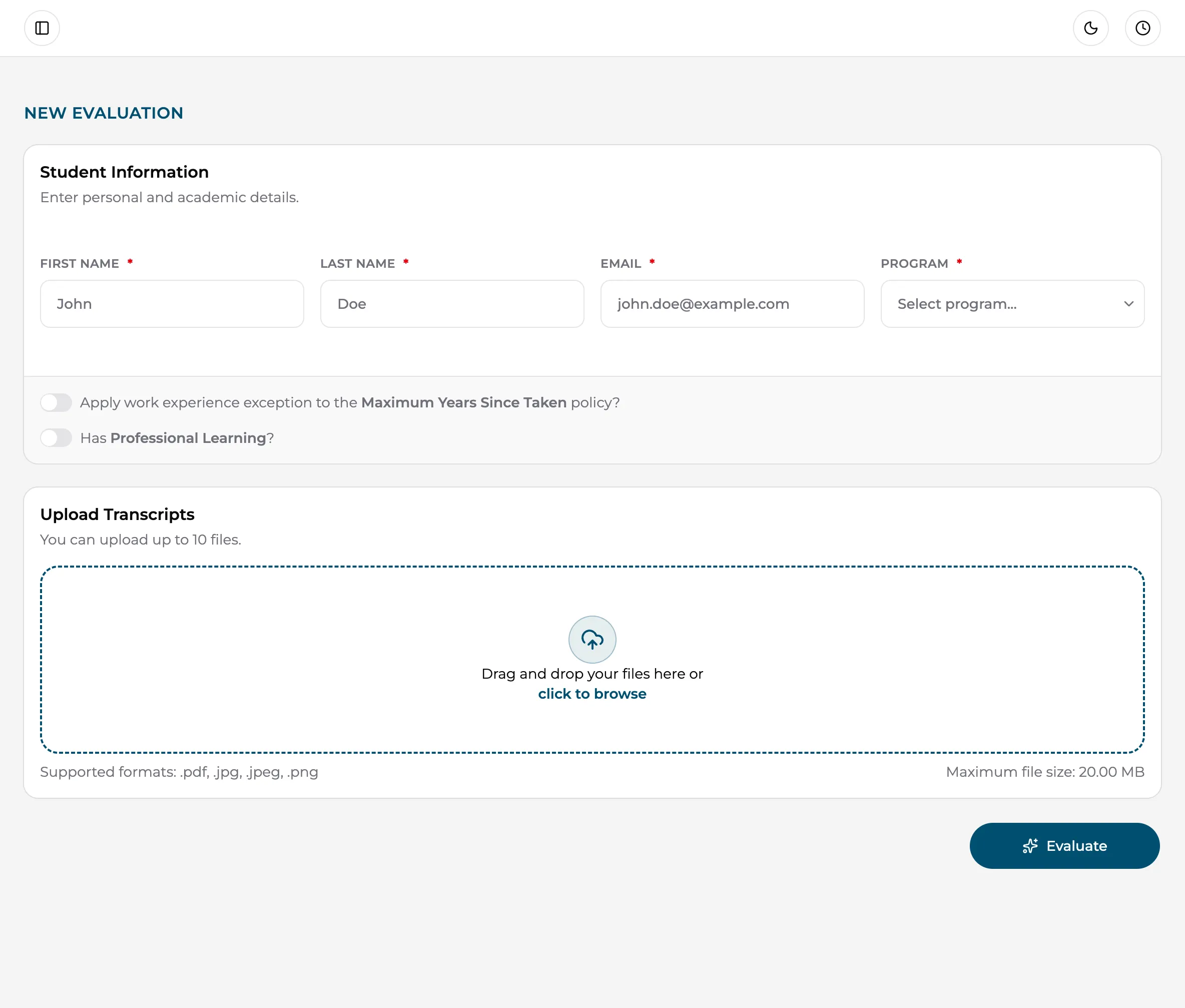
Student Information
Section titled “Student Information”The first card collects the student’s personal and academic details:
- First Name, Last Name, Email — all required. The email address is where the results PDF can be sent when the evaluation is finished.
- Program — required. A searchable dropdown of your institution’s programs; the transcript will be matched against this program’s courses and evaluated under its transfer policy.
- Program Concentration — appears only when the selected program has concentrations, and is then required.
Work experience exception
Section titled “Work experience exception”The toggle “Apply work experience exception to the Maximum Years Since Taken policy?” lets you waive the program’s course age limit for a student whose relevant work experience keeps old coursework current (common for nursing and other clinical programs).
Switching it on opens a confirmation dialog — confirm to apply the exception. With the exception applied, courses older than the program’s time limit are not excluded for age.
Professional learning
Section titled “Professional learning”If the student has professional certificates (CPR, licensure, industry credentials), switch on “Has Professional Learning?”. An Upload Certificates card appears where you can add those documents alongside the transcript.
Uploading files
Section titled “Uploading files”Drag and drop files into the Upload Transcripts card, or click it to browse. The platform accepts PDF, JPG, JPEG, and PNG files, up to 10 files per evaluation and 20 MB per file — enough for transcripts from several prior institutions in one evaluation.
Every file is scanned for malware as it’s added (you’ll see “Scanning…” briefly); infected or unreadable files are rejected before the evaluation starts.
Start the evaluation
Section titled “Start the evaluation”-
Check the student details and uploaded files.
-
Click Evaluate.
-
You’ll see a confirmation that the evaluation is now processing. Its live progress appears in the Evaluation Queue popover in the top bar — you can navigate anywhere in the portal while it runs.
-
When processing completes, the evaluation appears under Evaluations › Pending, ready for review.
Other ways evaluations get created
Section titled “Other ways evaluations get created”Staff upload isn’t the only entry point:
- Student direct links — you generate a personal upload link and send it to the student.
- Website embed form — prospective students upload transcripts from your website; these arrive as Leads.