

Website Embed Form
The embeddable HTML form turns your website into a transfer credit funnel: prospective students upload a transcript on your site, get an AI-powered credit estimate by email, and land in your portal as Leads. It’s part of the Marketer add-on; generating forms requires the Manager role.
Before you start: whitelist your domain
Section titled “Before you start: whitelist your domain”The form only runs on domains you’ve approved. In
Admin Settings › Domain Whitelist, click Add Origin and add your
website’s origin (for example https://www.your-college.edu). Add every
domain that will host the form, including staging sites if you want to test
there.
Generate a form
Section titled “Generate a form”-
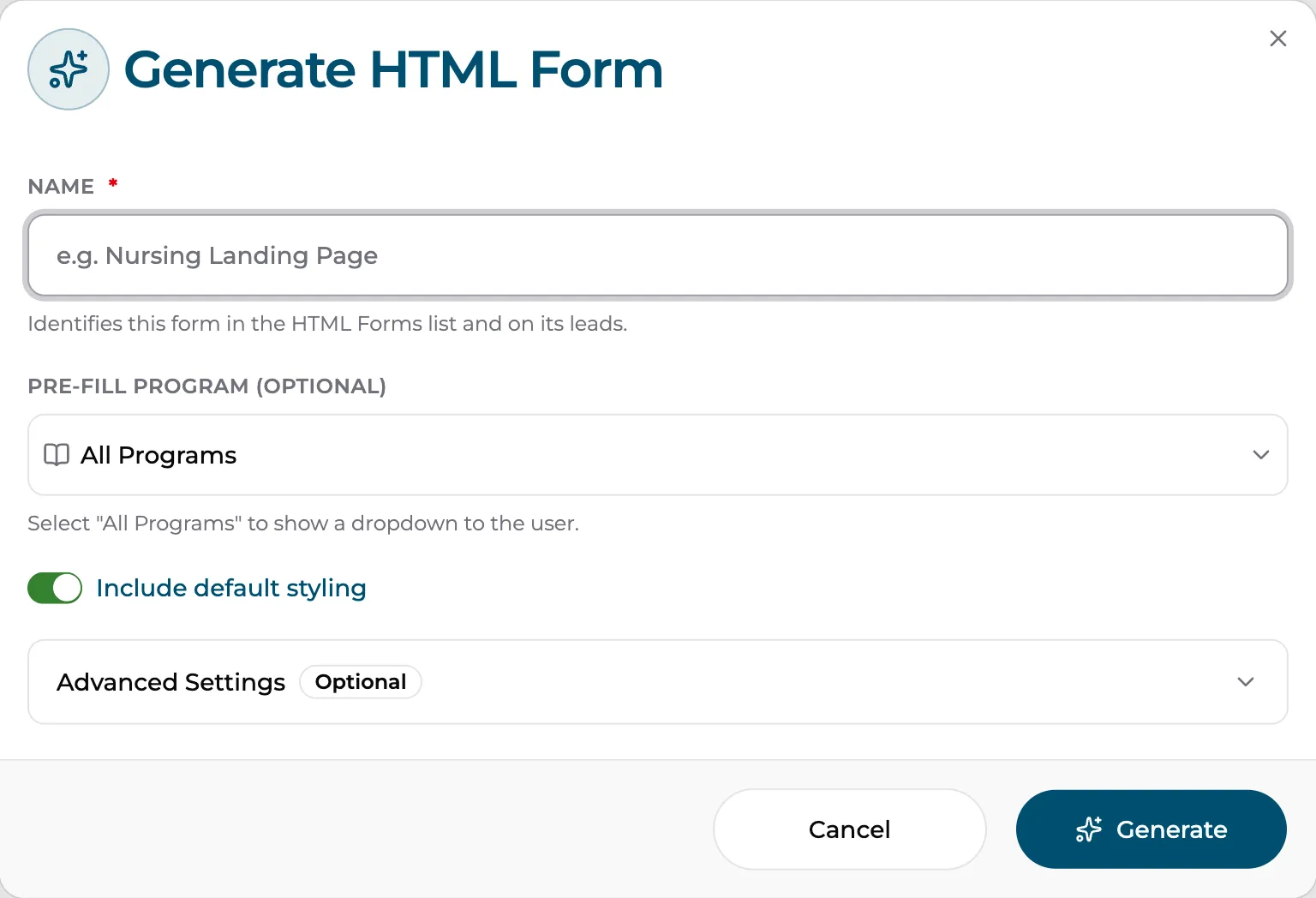
Go to Marketer › HTML Forms and click Generate.
-
Fill in the form settings:
- Name — identifies the form and tags its leads (for example “Nursing Landing Page”), so you can tell which page a lead came from.
- Pre-fill Program (optional) — lock the form to one program, or choose All Programs to let the student pick from a dropdown.
- Include default styling — keep this on unless your web team plans to style the form themselves.
-
(Optional) Open Advanced Settings › Hidden Fields to attach tracking data. The built-in source field records where the lead came from, and you can add your own key/value pairs (campaign codes, UTM values) — they ride along invisibly with every submission.
-
Click generate. You’ll get the HTML snippet with Copy and Preview Form buttons.
-
Paste the snippet into your website page — CMS block, landing page builder, or raw HTML. Publish, and the form is live.
What the student experiences
Section titled “What the student experiences”The embedded form asks for first name, last name, and email, a program (unless pre-filled), the transcript upload (PDF, JPG, or PNG), optional professional certificates, and whether they have relevant work experience. A disclaimer explains the result is an AI-powered estimate, not a binding award.
After submitting, the student verifies their email with a 6-digit code, then watches a progress page while the AI analyzes their courses — or closes the tab and waits for the results email. The results page and email carry your logo, brand colors, disclaimer, and call-to-action — all configurable in Results page & email.
Where submissions go
Section titled “Where submissions go”Every submission appears in Marketer › Leads with its processing status. Open a lead to see the student’s details and evaluation. Leads can also fire webhooks to your CRM — on submission, on completion, or both.
Managing existing forms
Section titled “Managing existing forms”Each form on the HTML Forms page has a row menu:
- Copy HTML — grab the snippet again.
- Edit HTML Form — rename it or change its settings.
- Revoke HTML Form — permanently disable it; the embed stops accepting submissions everywhere it’s pasted.
The form doesn’t load?
Section titled “The form doesn’t load?”Check the troubleshooting steps — the usual causes are a missing domain-whitelist entry or a modified snippet.