

Signing In & Navigation
Signing in
Section titled “Signing in”Open your institution’s TCEvaluator portal address and sign in on the Welcome back! screen. Depending on how your institution is configured you can sign in with:
- Email and password — the account your Admin created for you. Check Remember Me to stay signed in on your own computer.
- Continue with Google or Continue with Microsoft — single-click sign-in with your work account.
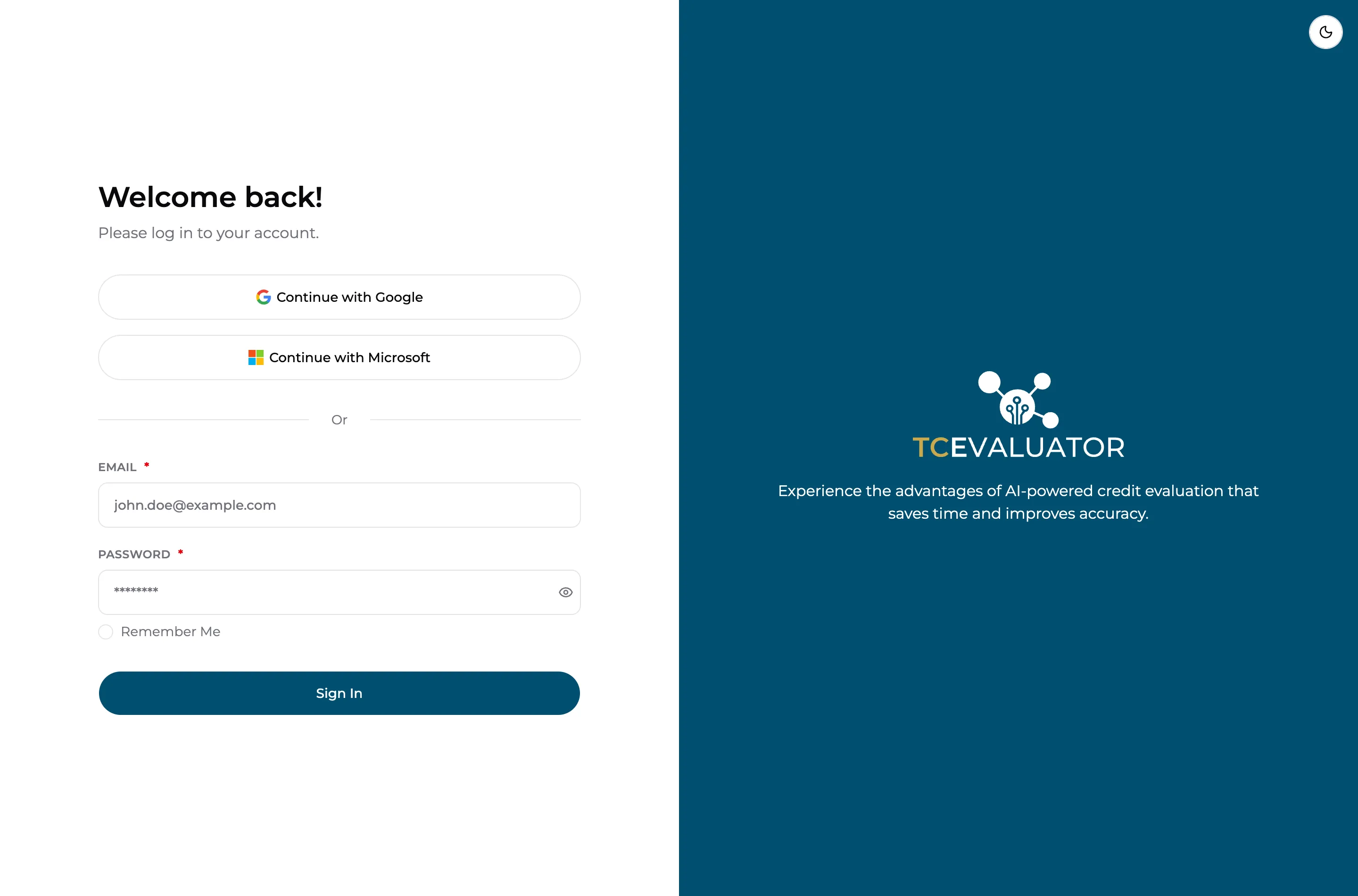
Use the same email address your administrator invited. If you’re not sure which method to use, ask the person who manages TCEvaluator at your institution — accounts are created in User Management.
Finding your way around
Section titled “Finding your way around”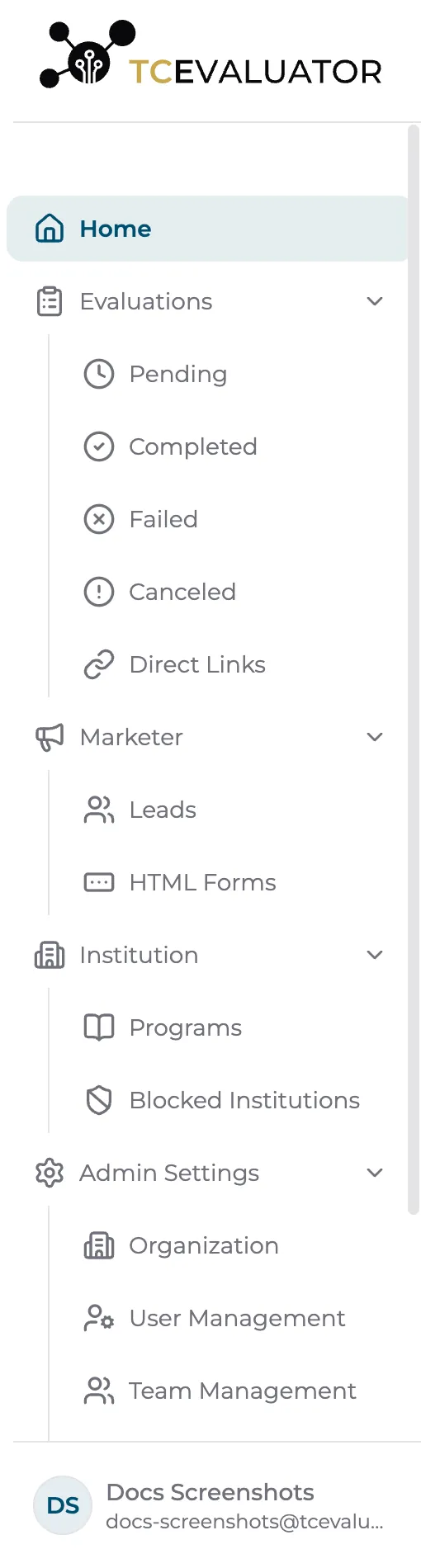
Once signed in, everything is reachable from the left sidebar:
- Home — dashboard metrics (academic year, pending and completed evaluations, courses matched) and a New Evaluation form.
- Evaluations — your evaluation lists: Pending, Completed, Failed, Canceled, and Direct Links.
- Marketer — website Leads and HTML Forms (if your institution uses the marketing add-on).
- Institution — Programs and Blocked Institutions (Managers and above).
- Admin Settings — organization, users, teams, integrations, domain whitelist, and the results page editor (Managers and above).
What you see depends on your role and which add-ons your institution has enabled — it’s normal for the sidebar to show fewer entries than listed here.
The top bar has three controls:
- the sidebar toggle to collapse or expand navigation,
- the theme toggle to switch between light and dark mode,
- the Evaluation Queue — a live popover showing evaluations currently processing, so you can start an upload and keep working elsewhere.
Your account menu is at the bottom of the sidebar — that’s where you sign out.