

Quick Start
This walkthrough takes you from signing in to a finished evaluation. You’ll need an account with the Analyst role or higher, and at least one program set up with courses.
-
Sign in to your institution’s TCEvaluator portal. See Signing in if it’s your first time.
-
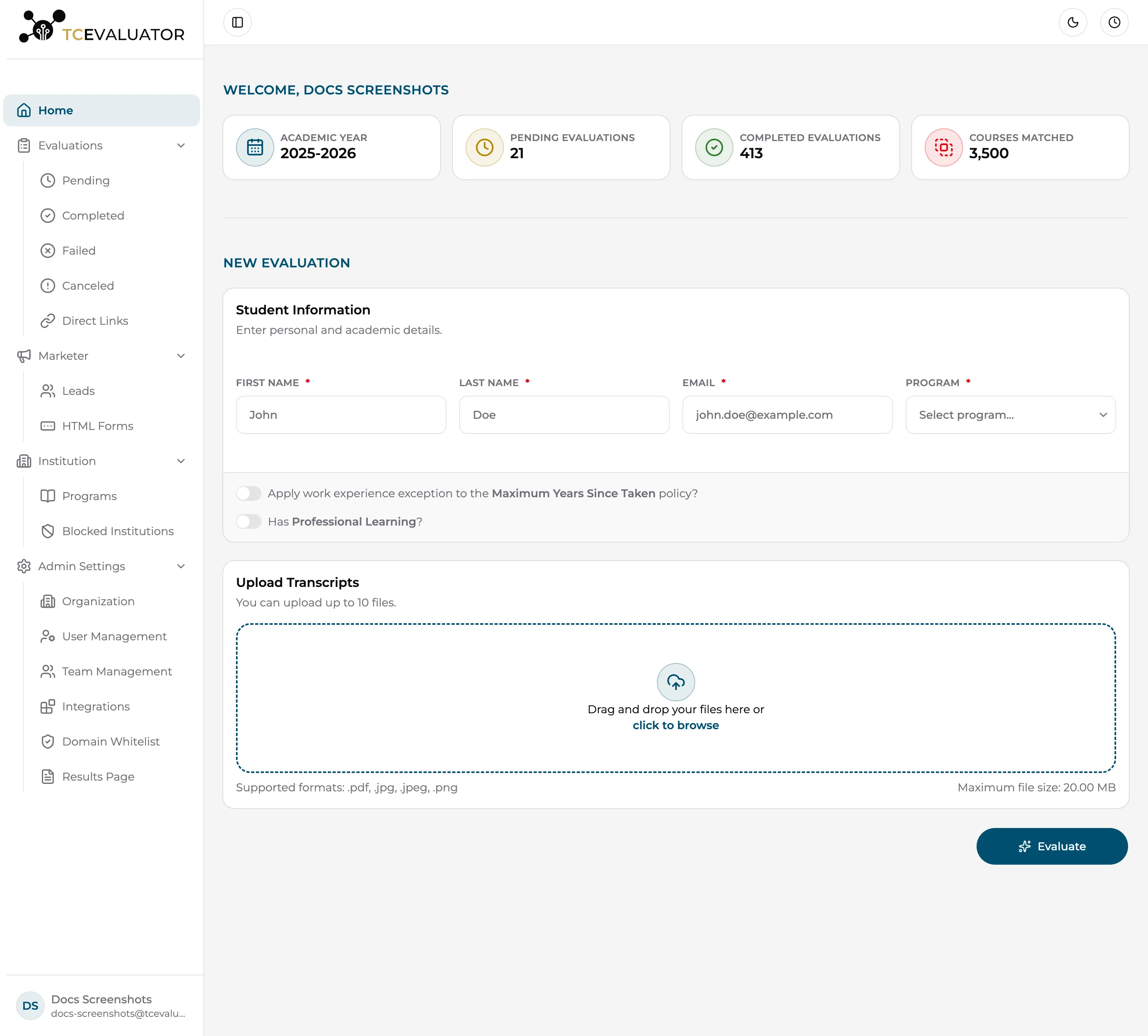
Start a new evaluation. From the Home page, use the New Evaluation form (or open the New Evaluation page directly).
-
Enter the student’s information. First name, last name, email, and the Program to evaluate against. If the program has concentrations, pick one.
-
Upload the transcript. Drag and drop the file into the Upload Transcripts area — PDF, JPG, and PNG are supported. Each file is scanned for malware, then accepted. If the student has professional certificates, switch on Has Professional Learning? and upload those too.
-
Click “Evaluate”. You’ll see a confirmation that the evaluation is processing, and its live progress appears in the Evaluation Queue in the top navigation bar.
-
Open the evaluation for review. When processing finishes, the evaluation appears under Evaluations › Pending. Open it to see the transcripts summary, the AI’s suggested course matches, and the student’s eligible and ineligible transcript courses. Accept, add, or remove matches as needed — see Reviewing results.
-
Confirm the results. Click Confirm Results, then decide for each matched course whether to save the match (Yes or No). Add any closing comments.
-
Finish and deliver. Click Finish Evaluation. From the completion dialog you can Download PDF or Email PDF to the student. The evaluation now lives under Evaluations › Completed.
Where to go next
Section titled “Where to go next”- Understand every field on the form: Creating an evaluation
- Let students upload their own transcripts: Student direct links and the website embed form
- Tune how strictly the AI matches courses: Organization settings › AI Settings